Navigation menu
The navigation menu is used to display information regarding navigation, selecting a navigation destination as well as display widgets such as multimedia and trip statistics. Navigation data can be entered directly in the menu by typing in the search bar, issued by voice control, or sent directly from the Zeekr app to the car.
Note: The car needs permission to access vehicle location data for the navigation system to function properly. For more information, see Navigation system setup.
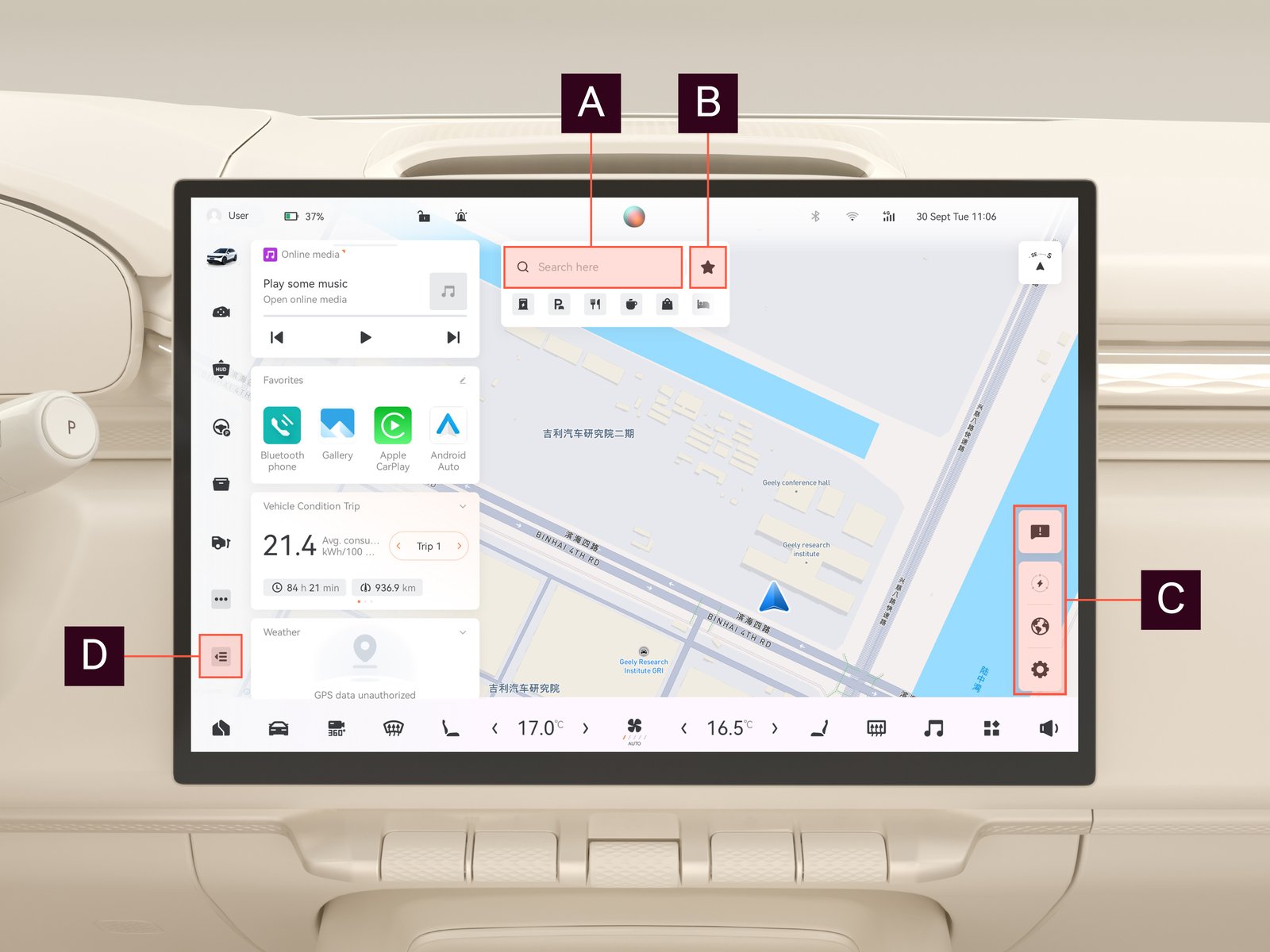
| Function | Description | |||||||||||||

|
Search bar | Search for a location. | ||||||||||||

|
Favourites | Press to add and navigate to favorites. | ||||||||||||

|
Navigation toolbar and feedback |
|
||||||||||||

|
Hide/unhide widgets | Press to hide/unhide the widgets. |
To add/edit home and work addresses, select the corresponding location short cut symbol under favorites.
To send navigation data from the Zeekr app to the car:
| 1. |
Make sure that the phone and the car are logged in to the same Zeekr account.
|
| 2. |
Open the Zeekr app on your phone.
|
| 3. |
Navigate to  . .
|
| 4. |
Enter the destination information in the search field.
|
| 5. |
Press Send to car.
|
| 6. |
Wait for a notification that the data has been successfully sent to the car.
|
| 7. |
The destination appears in the navigation menu in the car. Press it to begin navigation.
|
Note: The phone menu paths are for illustrative purposes and can differ based on the model of your phone, software version or settings.
Widgets
Widgets such as trip information, multimedia, and favorite apps are displayed in the navigation menu.
Press and hold to move the widgets.
Navigation system setup
The navigation system needs permission to access the car's location data to function properly. Without permission to access location data, the navigation system can display the incorrect location, use the wrong speed unit, or both. Additionally, traffic sign information and speed limit adaptation also need permission to access location data to function properly.
To give the car permission to access location data:
| 1. | Navigate to

|
| 1. |
Press Navigation.
|
| 2. |
Select Allow navigation for 1 year.
|
| 3. |
Reboot the displays. See Reboot the center display and driver display.
|
| 4. |
Open the navigation menu.
|
| 5. |
Calibrate the navigation system by driving the car and periodically checking the navigation interface until it starts showing the correct location.
|
Navigation settings
In the navigation settings menu, you can adjust navigation route selection behavior, voice guidance behavior, and what is displayed during navigation. You can also update map data, see version history, and more.
To enter the navigation settings menu:
| 1. |
Make sure you are in the navigation menu.
|
| 2. |
Press  . .
|
Note: New map data will be installed after restarting the car.